An EdTech accessibility review should include the public website as well as the learning platform. Someone needs to understand the offer, use the sample and complete a trial, purchase or enquiry before they can benefit from the learning itself.
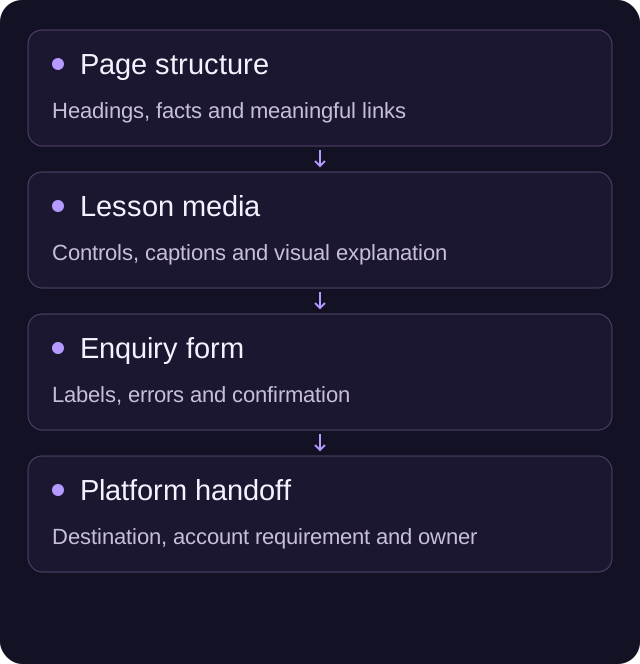
Start with one complete task: find a suitable course, check its format, try a sample and take the next step. Test that route with a keyboard, enlarged content and the relevant assistive technology. Record where people get stuck, who owns the fix and how you’ll check it again.
This checklist helps a team organise that first review. It does not establish WCAG conformance or replace an accessibility assessment. W3C makes the same distinction in its Easy Checks introduction: initial checks can reveal barriers, but they do not assess everything.
Start with the route a new visitor would take
Choose a genuine product or course page rather than the cleanest page in the design file. Include a page with a real sample, a form and a link into the existing learning platform.
Write the task without naming the controls. “Find out whether this course suits a beginner and try part of it” gives you more useful feedback than “click the purple button”. Ask the participant to describe anything unclear without coaching them through the interface.
Keep the scope visible. The marketing team may own course descriptions and videos while another team owns sign-in and lessons. A barrier at that boundary still needs an owner, even if it lives outside the marketing CMS.
Make course information understandable without the layout
Read the headings and links on their own. Can you distinguish the learning level, format, subject and next step? Repeated links labelled “Learn more” become hard to interpret when separated from the cards around them.
Use proper heading structure for the page’s sections. W3C’s page-structure guidance explains how headings and page regions support navigation. Keep the important course information in text rather than baking it into a promotional image.
Check a course comparison as well. A visual badge saying “best for beginners” needs an equivalent explanation someone can read or hear. If a comparison table is important to the decision, test its headers and reading order rather than replacing it with an unexplained screenshot.
Review the sample as carefully as the sales page
A sample lesson should show whether the learning suits the visitor. That includes someone who cannot hear the audio, see a diagram or operate a custom player with a mouse.
For a recorded lesson, check captions, a useful transcript and how essential visual information is explained. A transcript of spoken words may miss an equation or action demonstrated silently. W3C’s audio and video guidance sets out these different needs.
Try the controls with a keyboard. Can you start, pause, change position and leave the player? If the sample includes an exercise, instructions and feedback need to remain understandable when sound, colour or animation is unavailable.
Use a sample you have permission to publish. A demonstration account with fictional details is often more useful than trying to obscure real learner information after recording.
Put the public website in the same review as the product
We help teams plan the public pages, CMS and enquiries around their learning offer. Our EdTech website service explains that scope. For an example of our education work, see our ongoing website support for Glasgow School of Art. That is education website maintenance, not a claim that we built its learning platform or certified its accessibility.
Check forms through to a useful confirmation
Try the demo or trial form without a mouse. Check the instructions before entering anything. Required fields should be understandable before an error occurs, and a failed submission should explain what needs correcting.
Then submit a clearly labelled test using an agreed test route. Does the page confirm what happened and what to expect next? Someone should not have to guess whether a demo was requested or a learner account was created. W3C’s form-notification guidance explains the importance of understandable success and error feedback.
If a third-party form or scheduler is embedded, include it in the review. Its presence inside your page does not mean it inherits your page’s accessibility. Provide a usable alternative contact route while any barrier is being resolved.
Enlarge the page and follow the handoff
Check the website at a narrow viewport and with browser zoom. Look for overlapping controls, clipped instructions and sticky elements covering the form. A page can fit on a phone and still become difficult when a visitor enlarges the text.
WCAG’s reflow explanation describes a width equivalent to 320 CSS pixels for vertically scrolling content, with specific exceptions. Use it to inform your test plan rather than treating a quick phone preview as the whole requirement.
Follow the link into the learning platform. Does the destination explain why the visitor is there? Is “Try a lesson” actually a login screen that requires an account they don’t have? If someone leaves to read a prerequisite and returns, have they lost their place?
Those questions concern the join between systems. Record them with the team that can change the destination, not only the person editing the link.
Keep a task-based review record
Use this worksheet for each route. Record the page and environment so a developer or content editor can reproduce the problem.
| Task | What to record | Likely owner to involve |
|---|---|---|
| Find a suitable course | Missing facts, unclear links or confusing headings | Content and website team |
| Understand the format and commitment | Information available only in images or ambiguous wording | Course owner and editor |
| Use the lesson sample | Player, captions, transcript or exercise barriers | Learning and media team |
| Request a demo or trial | Label, focus, error or confirmation problems | Website and form owner |
| Enter the learning platform | Unclear destination or account-state problem | Product or LMS team |
For every issue, add the observed result, expected result, owner and retest evidence. A screenshot helps with a visual overlap; a short description of the keyboard sequence helps with a focus problem.
Prioritise barriers that stop people completing the task, then plan the wider assessment with the right expertise and disabled users. Keep the record open as content and tools change. A new video or form can introduce a barrier after the original website review.
If the public route is the part your team cannot easily improve, bring us the page and the task you want someone to complete.
A few useful answers
Does this checklist establish WCAG conformance?
No. It organises an initial task-based review of the public journey. A wider accessibility assessment needs the right expertise, scope and disabled-user involvement.
What should we check in a lesson sample?
Check keyboard-operable controls, captions, a useful transcript and explanations of essential visual information. Instructions and feedback should remain understandable without relying only on sound, colour or animation.
Should the learning-platform handoff be included?
Yes. Follow the actual link and account requirement. Record barriers at the boundary with the team that owns the destination, even when it is outside the marketing CMS.