

A Webflow website still needs someone to look after it. Pages change, forms connect to other tools, people leave the team and a small edit can affect a shared component. The useful question is not whether the site needs maintenance, but who checks what.
Start with a responsibility map
Webflow provides the managed hosting layer, including SSL/TLS and platform updates. That does not make it the owner of your copy, custom scripts, account access or the tools receiving your enquiries. Its hosting overview explains that platform scope.
Use a small ownership table rather than a vague agreement to keep the site up to date. These are example responsibilities to confirm with the people involved, not a description of a particular support contract.
| Area | Who owns the decision? | What to record |
|---|---|---|
| Content and approvals | The business content owner | Which pages need review, who approves them and when. |
| Layout and custom code | The person maintaining the build | What changed, where it was tested and how to reverse it. |
| Forms and integrations | The website maintainer and receiving-system owner | Where records go, who receives alerts and how failures are checked. |
| Accounts and domain | The organisation's account owner | Admin contacts, renewal ownership and access-review dates. |
| Incidents and recovery | A named lead and backup contact | How to report a problem, who approves recovery and what remains unverified. |
If the job covers several platforms or a custom-hosted site, use a general website maintenance scope instead. Server updates, deployment tooling and other CMSs need their own responsibilities. Do not apply a Webflow checklist to a different stack unchanged.
A monthly Webflow maintenance checklist
A monthly review is a useful starting point, not a reason to wait when a form breaks. Check business-critical journeys more often when the risk justifies it. For each check, record the date, page or system, outcome, evidence and next owner.
Check the journeys that matter
- Navigation and contact: follow the route from a service or campaign page to its intended action. Check links, downloads, menus, focus states and an actual phone-sized layout.
- Forms: review required fields, success and error states, the receiving system and the notification recipient. Arrange any test submission with the owner first, label it as a test and keep it out of customer workflows and reported conversions.
- Embedded tools: check calendars, search, maps, calculators and other widgets where they are used. A working homepage does not prove that every third-party integration works.
Review content and search essentials
- CMS content: check a representative article, project and other Collection template with long titles and missing optional fields. Review expired offers, old team details, downloads and broken references.
- Important URLs: review broken-link reports and changed addresses. Confirm that relevant pages return the intended status and still have the right title, canonical URL and indexing setting.
- Images and performance: inspect new uploads and busy templates for oversized media or unnecessary scripts. Compare the same pages under similar test conditions; one speed score is not a guaranteed visitor experience.
Review access and connected services
- Access: confirm who can edit and publish, remove access through the organisation's approved process when it is no longer needed, and check that recovery contacts are current.
- Custom code: keep an inventory of snippets, apps and embeds, with an owner and a reason for each. Review vendor notices before changing versions; do not update an important dependency blindly on the live site.
- Operational record: review open defects, failed automation runs and upcoming renewals with the responsible owners. Note what was not checked, rather than marking the entire website healthy.
Follow a form beyond the success message
Imagine a contact form that displays a thank-you message but no longer alerts the sales team. That is an illustrative failure scenario, not a client result. The check needs to follow the route from the browser to the stored record and then to the intended recipient.
For a form processed by Webflow, review its submissions and notification settings. A custom action can bypass Webflow's form processing, so the evidence may instead sit with the external provider. Webflow documents that distinction in its form submissions guide and notification troubleshooting guide.
Keep those results separate: the form was accepted, the destination stored a record, the notification was delivered, and a person qualified the enquiry. They are different observations. Do not use a button-click count as the number of sales leads, or put names, email addresses and message text into analytics events.
Use a release checklist for changes
The monthly review finds work; a release checklist controls how that work goes live. A text edit and a new checkout integration do not need identical processes, but both need an owner and a clear boundary.
- Describe the change. Name the affected pages, CMS templates, shared components and connected tools. Record the current behaviour and the person approving the result.
- Prepare recovery. Confirm that a suitable restore point is available, and separately preserve any redirect, content or integration information needed for the change. Identify who can perform recovery.
- Publish to staging. Webflow lets you publish to its staging subdomain without publishing to the custom domain. Check the selected domains in the publish controls; previewing the canvas is not the same as testing the published page.
- Run focused QA. Check the changed journey on mobile and desktop, with a keyboard, and with realistic content. Review shared navigation and forms after a global change. Verify the relevant metadata, redirects and consent-dependent scripts.
- Approve and publish. Record approval and publish only the intended destinations. Recheck the live URL, its main action and any receiving system, then record the result and remaining issues.
Webflow's publishing guide explains staging, production destinations and publishing permissions. Use the permissions available on your plan; this checklist does not assume Enterprise-only controls.
Know what recovery will and will not restore
Webflow creates restore points as you work and supports manual restore points. Do not describe those as a scheduled daily backup service. Confirm the backup access and restore options available for the site before relying on them.
A restore also needs follow-up checks. Webflow notes that restoring can affect scheduled content and form protection, including reCAPTCHA settings and bot blocking. Review its current backup and restore guidance, then check the relevant settings and journeys after recovery.
A website restore does not reverse a payment, delete a CRM record or roll back an order stored in another system. Agree separate recovery steps with those owners. For a redirect change, export and review the current map first: Webflow's redirect CSV documentation warns that importing a file replaces the existing redirects.

Make incident handling a short, usable process
Record the affected URL, when the problem was noticed, which journey fails and any relevant recent change. Avoid placing customer information in a shared issue report. Assign one incident lead, tell the business what is known and agree when the next update is due.
Then identify the failing layer: published page, custom script, Webflow service or external integration. Check the provider's status and the site's own evidence before making changes. Pause a risky release if needed; do not restore the entire website just because one external service is unavailable.
After a fix, recheck the journey and any affected records. Do not replay orders, payments or automated actions without checking whether they already completed. Close the incident with a short account of the cause, recovery, outstanding work and owner. Response times and cover belong in the agreed support scope, not an assumed promise of round-the-clock availability.
Why the connected journey matters
On Telecoms World, our work included the Webflow marketing website, a phone-number selector connected to the ordering API, the checkout handoff and backend connections, alongside ongoing forms, scripts, calculators and graphics. That is why maintenance needs to follow a working journey rather than stop at the appearance of a page.
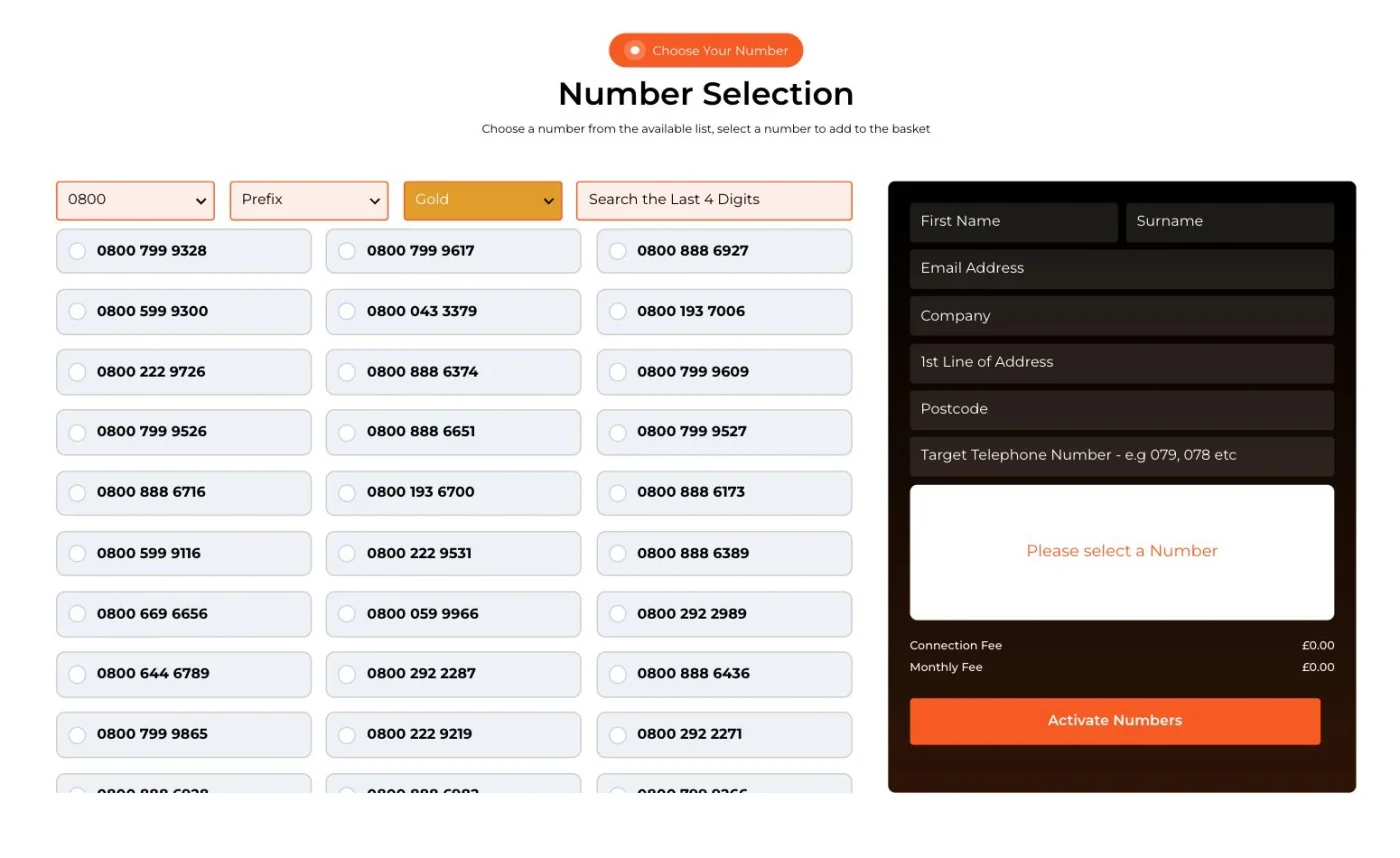
The Telecoms World project story explains how the number selector, checkout and backend fit together.
A handover your team can actually use
Before a maintainer changes, make sure the organisation can continue publishing and get help without relying on one person's memory. Keep credentials in the approved password manager, not in the handover document.
- Ownership: Workspace, site, domain and billing contacts, plus the person who can approve access changes.
- Publishing: the staging and production addresses, content-editing instructions, approval route and a record of important shared components.
- Dependencies: custom scripts, apps, forms, webhooks, calendars and integrations, with their owners and safe test method.
- Recovery: how to find and inspect restore points, what sits outside Webflow, and which checks follow a restore.
- Evidence: the last completed checks, release notes, known limitations, open issues and the next review owner.
Need someone to carry out that work with your team? Our Webflow maintenance and ongoing support service covers an existing Webflow website. Start with its current setup and the work needed, then agree responsibilities and support boundaries before changes begin. Tell us what needs looking after.
Platform references above were checked on 20 October 2026. Webflow's controls and plan requirements can change, so use the linked guidance alongside your site's settings.