
Webflow site search helps visitors find pages using words they already know. CMS filters help visitors narrow a collection using categories such as topic, industry or resource type. Use search for a question that spans the site, filters for a structured browsing task and both only when the library genuinely needs both routes.
The choice starts with how people look for information. A visitor searching for a named integration behaves differently from a visitor comparing case studies in their industry.
Recognise the two finding tasks
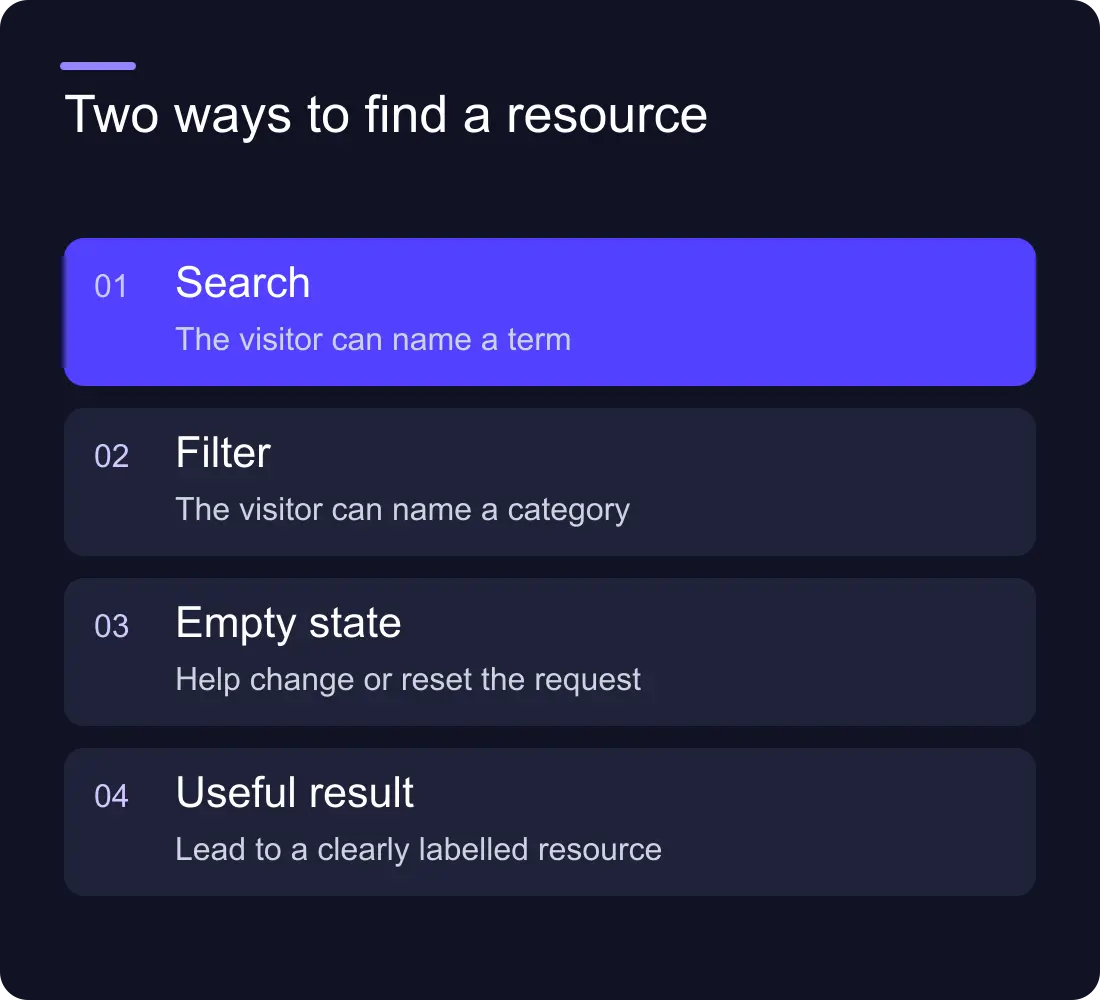
Search is useful when a visitor can name the thing they need. That might be a product term, an author, a feature or a specific question. The system needs to return useful pages even when the visitor does not know your category structure.
Filters are useful when someone knows the kind of thing they need but not its title. They might want migration resources for a small marketing team or case studies in a particular sector.
Neither route fixes unclear content. Search cannot explain an ambiguous page title, and a filter cannot classify resources consistently if the source data is incomplete. Start with the information structure before selecting an interface.
Compare the implementation jobs
| Requirement | Site search | CMS filters |
|---|---|---|
| Find a named term across pages | Natural fit | Needs a searchable list or additional approach |
| Narrow a known resource collection | Broad search can be imprecise | Natural fit with consistent fields |
| Control visible category choices | Managed through content and index settings | Managed through taxonomy and controls |
| Handle empty results | Suggest a useful next route | Explain reset or fewer selections |
| Keep results current | Check indexing behaviour | Check data, loading and filter behaviour |
Webflow's current site search documentation explains indexing, exclusions and search result presentation. Publishing content and refreshing the search index are related but distinct operations, so include index checks in your release workflow.
A worked example: a mixed resource library
Imagine a fictional agency with articles, case studies and downloadable guides. A visitor typing redirects should find the relevant explanation even if it is filed under Migration. A visitor browsing for healthcare case studies needs a predictable industry filter.
The library could provide a search route across the site and a filterable case study collection. It does not need to force both controls onto every page. On the case study page, the filter may be the primary tool. In the global navigation, search may be more useful.
Write down a few expected queries and browsing combinations before building. Those become acceptance tests grounded in real content, rather than checking only that the input box and dropdown appear.
Make the taxonomy usable
Use categories that visitors understand and editors can apply consistently. If Industry, Sector and Customer Type all mean nearly the same thing, simplify the model before exposing them as separate controls.
Decide whether an item can belong to several categories and whether combined filters mean all selected conditions or any selected condition. A visitor should not need to guess why their selection produced a particular result.
Review the CMS content model if classification is being typed repeatedly into free-text fields. Consistent relationships make the filters more reliable and easier to maintain.
Choose a filter implementation deliberately
Webflow's Collection presentation, a third-party filtering tool or custom code may suit different requirements. Compare the behaviour you need: combined conditions, result counts, pagination, URLs, accessibility and loading large lists.
Finsweet's Attributes documentation is one current implementation resource. Use the documentation for the version you actually install. Old attribute names and tutorials can describe a different version or unsupported workflow.
Do not install a powerful filtering system just to support three categories. A clear topic menu may be easier to use and maintain. Start with the smallest implementation that solves the finding task.
Design the empty state before launch
An empty result is a useful part of the experience. Tell the visitor that no matching items were found and give them a way to change the query or reset the filters. Preserve their input so they can understand what happened.
Avoid blaming the visitor. A helpful message might suggest a broader term or fewer selected categories. If the library does not cover the subject, provide an appropriate contact or navigation route rather than inventing a result.
Test misspellings, unusual terms and combinations that produce nothing. Also test a broken script or slow load. The basic content should remain reachable even if an enhancement fails.
Separate browsing controls from SEO landing pages
A filter state is not automatically a useful page for Google to index. If the business wants a topic landing page, create a stable URL with a meaningful introduction and curated resources.
Decide what happens to query parameters and combined filter URLs in your implementation. Avoid accidentally generating many near-identical indexable pages with no distinct purpose. Check canonical output on the actual page.
Our resource hub guide covers the editorial structure. Search and filters are tools inside that structure, not substitutes for it.
Test finding, not just interaction
Give a tester three jobs: locate a named resource, find an example in a sector and recover from an empty result. Watch whether they understand the controls and reach the right content.
Repeat with a keyboard and a small screen. Check control labels, focus, visible selected states and reset behaviour. If results change dynamically, make sure the change is communicated accessibly in the chosen implementation.
Use observed search terms and empty results to improve titles, synonyms and content coverage. A finding tool becomes more useful when someone owns that review after launch.
Frequently asked questions
What is the difference between site search and CMS filters?
Site search finds pages using a visitor's words. CMS filters narrow a collection using predefined information such as topic or industry. They support different finding tasks and can coexist when needed.
Does every Webflow resource hub need both?
No. A small library may work with clear topic navigation. Add search or filters when visitors need a finding route that the simpler structure does not provide.
Why does a new page not appear in site search immediately?
The search index may need to refresh. Check Webflow's current indexing settings and release behaviour, then verify the actual result. Also check whether the content is excluded from the search index.
Should filtered results become SEO landing pages?
Only when they have a distinct purpose and an appropriate URL and content plan. A useful topic page needs more than a generated combination of filters. Decide indexing and canonical behaviour deliberately.